Choose Play → Drive to use your own car, then prepare your co-driver and follow the on-screen start prompts. An AI co-driver provides route calls; you still drive the car.
Based on the official description and recorded PC gameplay. Menu labels and the tutorial prompts below were visible in that recording; the current client may differ.
On this page
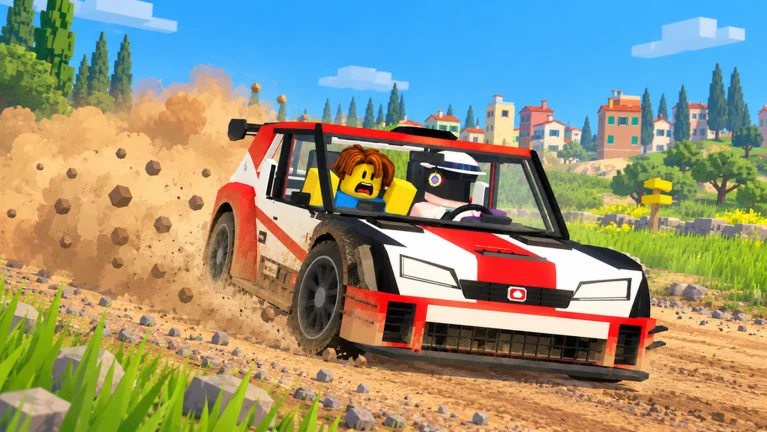
Prepare for a first run
For a first session, make the goal simple: get into the driver’s seat, complete the tutorial instructions and finish an attempt. Leave car comparisons and medal chasing until the start sequence feels familiar. The preparation below is a suggested learning order, rather than another set of game requirements.
- 01
Check inputs before you need them.
On PC, open Settings → Controls → Keyboard. Identify W/S, A/D, Space, R and the held Backspace action. Knowing which key recovers the car is especially useful when a crash makes it difficult to read the screen.
- 02
Keep the first setup uncomplicated.
Use the car available to you and inspect its current setup in My Garage. There is no need to buy an unverified upgrade to follow this guide. If you are learning alone, choose AI Co-driver so the passenger setup does not depend on another player accepting an invitation.
- 03
Set one finish-line goal.
Try to finish while understanding the route calls and recovery controls. If you need a recovery, continue learning from the rest of the stage rather than treating the entire run as wasted.
Which Play option should you choose?
Choose the role that matches what you want to practise. If your friend is driving, agree who sends the invitation before either of you starts changing seats. The co-op guide covers the invitation checks in detail.
| What you want to do | Choose | What to expect |
|---|---|---|
| Drive your own car and hear route calls | Drive | You operate the car; choose a co-driver during setup. |
| Be the passenger for another driver | Co-drive | Your job is to communicate the route, rather than operate the driver’s controls. |
| Walk around the service park | Free Roam | This is not the same as starting a timed driving run. |
From the menu to the start line
- 01
Open the official Roblox experience.
Use the clearly marked Play on Roblox link on this site. Launch Backseat Rally through Roblox and wait for its own menu to load.
- 02
Choose your role.
Open Play and select Drive to drive your car. Co-drive is the passenger role; Free Roam lets you walk around the service park. The recorded menu shows Enter to choose and Backspace to go back.
- 03
Prepare your car and co-driver.
My Garage is the place to inspect your car. The recorded co-driver panel offers Invite, AI Co-driver and Leave Seat Open. Use AI Co-driver if you want route calls without waiting for a friend.
- 04
Complete the start prompts.
Position your car in the start box and follow the panel: the reviewed Pine Forest screen shows Enter to START STAGE. The recording then shows a STARTING IN countdown. Wait for that countdown before expecting a timed run.
- 05
Finish a clean first attempt.
Treat the first run as a chance to learn the controls and hear the calls. Lift off early for unfamiliar corners and focus on reaching the finish before chasing a faster time.
If the tutorial will not continue
Read the current prompt before trying more keys. At 03:45 in the reviewed recording, the reversing lesson says to keep holding S once stopped to reverse, then displays HOLD S TO CONTINUE. Reaching a stop and continuing to hold the requested input matters in that lesson.
The tutorial asks for a held input.
Keep holding the key shown on screen for that step. A brief tap may not complete a lesson that explicitly says HOLD.
You expected the AI to accelerate.
The AI fills the co-driver role. Choose Drive and provide the driving inputs yourself.
Read the screen before choosing the next action
These are different states, not interchangeable ways to start the game. Repeatedly pressing Enter cannot substitute for completing a tutorial input, and driving around in Free Roam is not evidence that a timed stage has begun.
| What the screen shows | What to do next |
|---|---|
| Play choices | Choose Drive for your own driving session; Enter confirms the highlighted menu choice. |
| CO-DRIVER setup | Choose a person or AI, then check that setup before proceeding. |
| MISSED THE START BOX | Follow the displayed R instruction to return to the box. |
| START STAGE in the start box | Use the displayed Enter instruction. |
| STARTING IN countdown | Wait for the game’s countdown. |
| HOLD S TO CONTINUE | Hold the requested input through that tutorial step. |
If the run has not started
You are still in the service park.
Free Roam is the walking mode. Return to the Play choices and select Drive when you want a driving run.
Your friend is not your co-driver yet.
Being in the same server is only part of setup. Check the co-driver invitation and have your friend accept it; then follow the current start panel.
You missed the start box.
At 03:13 in the reviewed CHALLS recording, MISSED THE START BOX appears with R to return to the box. Follow that prompt, then use the current start instruction.
A tutorial or menu is waiting.
Complete the visible instruction first. Do not assume a menu key also controls the car; controls depend on the current screen.
You want to reset an attempt.
The recorded driving HUD shows R for the last checkpoint and holding Backspace to restart at the start box. A reset and a fresh start are different actions.
Sources & verification
Sources reviewed . A recorded interface is evidence of that version, not a claim of a live playtest.
- OfficialBackseat Rally on Roblox
Official experience page by No crash plez. Used for the cooperative premise, AI co-driver support and the environments described by the developer. A description is not a complete vehicle or stage database.
- Gameplay videoCHALLS — Backseat Rally gameplay, October 20, 2026
Reviewed recorded PC gameplay, including menu, garage, co-driver, tutorial and driving HUD footage. This is a review of a recording, not a claim that this site tested the current Roblox client. Interfaces can change.
- Gameplay videoItzVexo — recorded keyboard controls (10:00)
Reviewed Settings → Controls → Keyboard at 10:00. Bindings are observations from a recording, not a live-client test. Also checked the Pine Forest start panel at 01:16.